

Download Page Saver – Capture Full‑Page Web Screenshots Fast & Secure
Overview
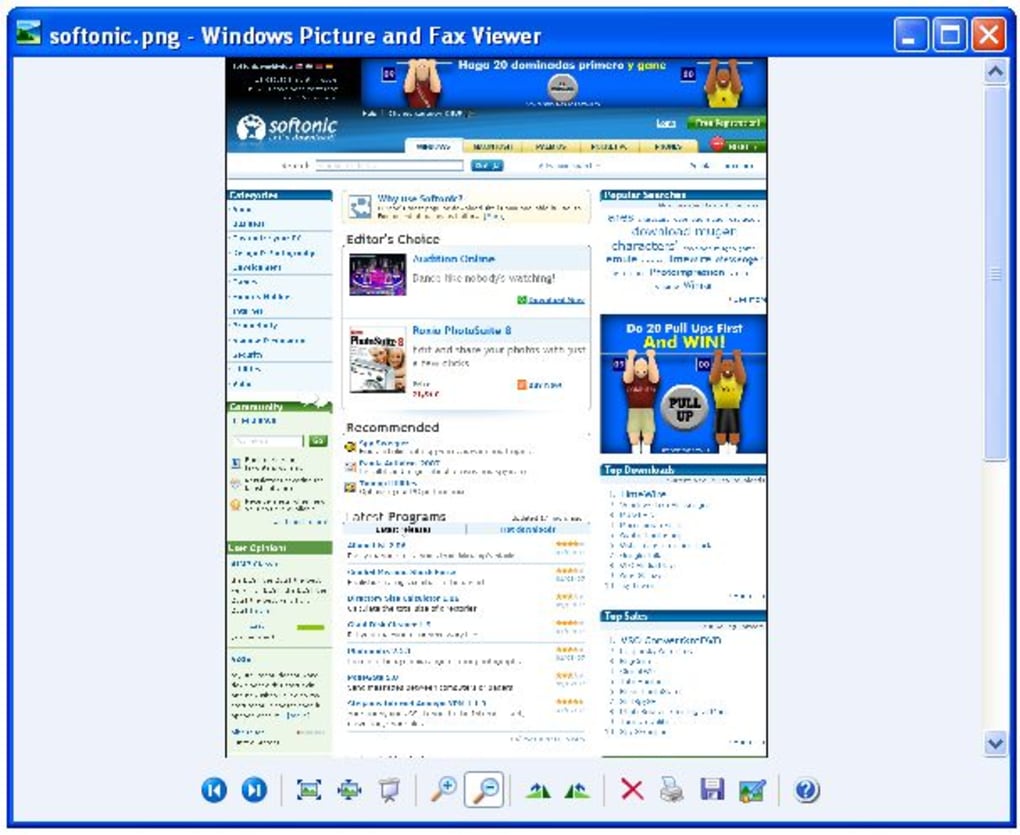
Page Saver is a lightweight Firefox extension designed to eliminate the hassle of stitching together multiple screenshots. With a single click, the tool captures an entire webpage—including the portions that lie beyond the visible viewport—and saves it as a high‑quality JPG or PNG file. Whether you need a complete visual record for research, a client presentation, or offline reading, Page Saver turns a time‑consuming manual process into a single‑press operation.
The extension integrates seamlessly into the browser’s toolbar, adds a convenient context‑menu entry, and even offers a customizable keyboard shortcut for power users. Its intuitive interface means you can start saving full‑page images immediately after installation, without digging through complex settings. Because the captured files are stored locally on your device, you retain full control over your data, making Page Saver a secure choice for professionals who value privacy and reliability.
Key Features & Benefits
- One‑click full‑page capture – saves the entire scrollable area in seconds.
- Supports both JPG (lossy) and PNG (loss‑less) output formats.
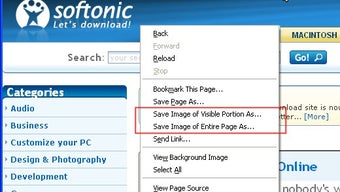
- Context‑menu entry for right‑click capture on any page.
- Toolbar button for instant access without leaving the browsing flow.
- Customizable hotkey (default: Ctrl + Shift + S) for rapid screenshots.
- Automatic filename generation based on page title and timestamp.
- High‑resolution output that preserves CSS styling, fonts, and images.
- Lightweight codebase – minimal impact on browser performance.
- Free to download with regular updates for compatibility and security.
- Offline storage – captures are saved directly to your local Downloads folder.
Pros
- Extremely easy to use – perfect for beginners and advanced users alike.
- Zero‑cost solution that rivals many paid screenshot tools.
- Secure local saving eliminates the need for cloud uploads.
- Fast rendering even on pages with heavy graphics or long scroll lengths.
- Regular updates keep the extension compatible with the latest Firefox releases.
Cons
- Currently available only for Firefox; no native versions for Chrome, Edge, or Safari.
- Limited editing features – users must rely on external image editors for post‑capture tweaks.
- Hotkey customization can be tricky on some keyboards with conflicting shortcuts.
Installation, Usage & Compatibility
Getting started with Page Saver is straightforward. Follow these steps to install and begin capturing full‑page screenshots:
- Open Firefox and navigate to the official Add‑ons page for Page Saver.
- Click the “Add to Firefox” button and confirm any permission prompts.
- Once installed, you’ll see a new camera‑icon button added to the toolbar.
- Optionally, right‑click any webpage and select “Capture Full Page with Page Saver” from the context menu.
- To use the hotkey, press Ctrl + Shift + S (or customize it in the extension’s settings).
After triggering a capture, Page Saver processes the entire document in the background. When finished, a dialog prompts you to choose the file format (JPG or PNG) and destination folder. The extension automatically names the file using the page’s title and the current date‑time stamp, making organization effortless.
Compatibility: Page Saver is built exclusively for the Firefox browser on Windows, macOS, Linux, and Firefox for Android (where supported). Because the extension runs inside the browser sandbox, it inherits Firefox’s own security updates, ensuring that your captures remain safe from malicious interference. Users on other browsers can look forward to a potential future release, but for now Firefox remains the sole platform.
Performance-wise, the extension consumes less than 5 MB of RAM and does not alter your browsing speed. If you encounter any issues—such as a page not fully rendering—simply refresh the page and retry the capture. Most modern websites, including those that employ infinite scroll or lazy‑loading images, are handled gracefully, with Page Saver automatically scrolling and stitching the content together before saving.
FAQ & Final Thoughts
Can I capture password‑protected or login‑only pages?
Yes. As long as you are logged into the site within Firefox, Page Saver will capture the page exactly as you see it, including any protected content.
Is there a limit to the length of a page that can be captured?
Practically, the limit is bound by your device’s memory. For most standard webpages, the extension works flawlessly, but extremely long pages (over 30,000 px) may require a brief pause while rendering.
Can I change the default download folder?
Page Saver follows Firefox’s global download settings. Adjust the folder in Settings → General → Files and Applications to control where captures are saved.
Does Page Saver store any of my browsing data?
No. The extension only accesses the currently displayed page to generate an image. All screenshots are saved locally; no data is transmitted to external servers.
How often is the extension updated?
The developer releases updates roughly every 4–6 weeks, aligning with major Firefox version changes and addressing any bug reports from the community.
In summary, Page Saver delivers a fast, secure, and completely free way to archive entire web pages with a single click. Its tight integration with Firefox, straightforward UI, and high‑quality output make it an indispensable tool for anyone who regularly needs visual documentation of online content. Ready to streamline your screenshot workflow? Download Page Saver now and start capturing full‑page images instantly.
Overall Rating: 4.5/5 – A robust, free solution for full‑page screenshots.







